My System Configuration #
(Side note, if you don’t want to read my ramblings just jump to the How to Configure Kate Section)
Kate is an editor that is available on Linux, Windows, and MacOS. I understand that a number of people are fans of VSCode (aka Visual Studio Code), but in my mind, it is bloated, slow, and feeds data back to Microsoft. I have used it in the past, but with more and more plugins being added that cannot be verified, I have decided to switch back to a much simpler editor that still has all the features and needs that I desire.
So, my current configuration is CachyOS on both a beefy desktop and on a 5 year old Lenovo Carbon X1 laptop. I do have windows on my Desktop, but I have not booted into it in a while. What I am getting at here is that these instructions may help you no matter what system you are running on, but there are nuances that I am going to cover that are either related directly to Arch based Linux distributions or directly to CachyOS. And, while the commands might be different, the packages needed to enable some features will probably overlap.
Features that I need for blogging #
I am mainly using Kate for editing my blog at the moment. I use it for work as well, but I will not go into that as no need to get Legal involved. I also use it for some side coding project that I have for my own uses. But for a HUGO blog there are a few features that I need in order for an editor to work well.
VIM, yes vim… get over it #
When I learned Linux years ago, I learned vim. I have years of muscle memory bound in it, and I see no reason not to continue to use it. For me, I enjoy the keyboard shortcuts, the configuration, the fact that it is installed on every machine ever, and that I can move around without having to use my mouse.
Also, it is is fun to share your system with someone and they try to edit a file, pure hilarity ensues. That may be wrong of me, but it is funny. And, it is also a blast to have people watch you yank a bunch of lines, move them, change the case, and all without your hands leaving the keyboard.
But, I digress, vim mode for text editing is what I use. If you don’t like it, well then, don’t use it.
Spelling and Markdown Preview #
The next two items that I need are a spellchecker and preview for Markdown file. These are essential tools for writing. One, so that I do not come across as a complete idiot, unable to spell. The other is to ensure that the Markdown that I am using is correct and that the formatting looks proper. Now, this can be a bit off, as HUGO has its own interpretation of Markdown, but it gets it close enough.
How to configure Kate #
Setting Kate to VI mode #
This one is simple and yet it always takes me 10 min to find where it is.
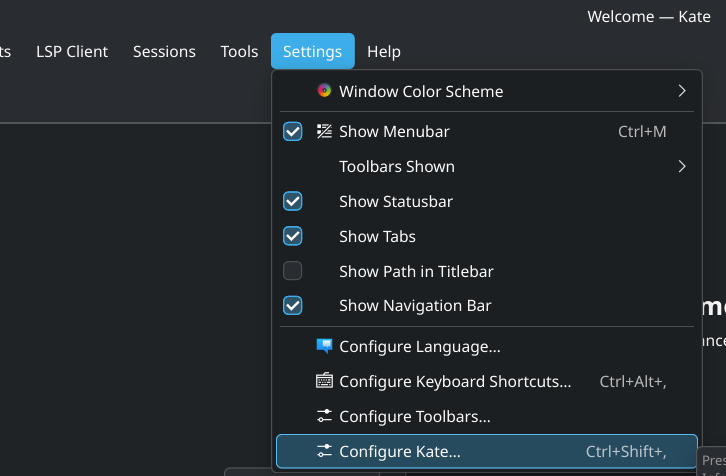
Click on Settings -> Configure Kate… or Ctrl+Shift+,
From there click on “Editing” in the left column. Next is a drop down menu. I always expect to find a check box. This is what takes me so long.
Look for Default input mode: and change the value to Vi Input Mode
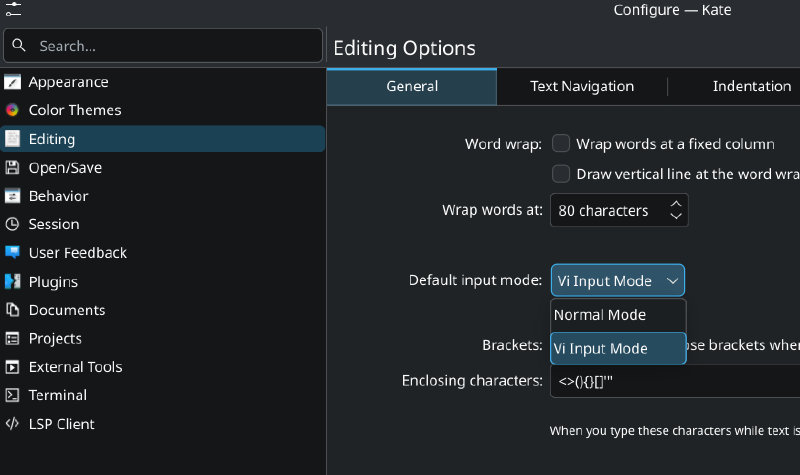
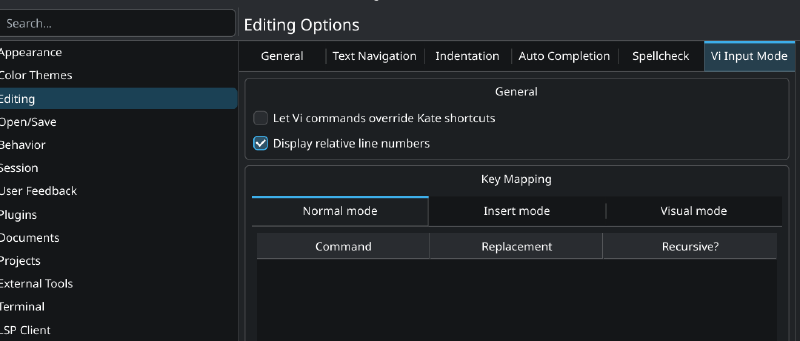
That is it. If you look upon the tabs, there is Vi Input Mode tab. I like to use relative line numbers. Makes it easier to know how many lines I want to jump up or down, or yank, or delete. There is a vi setting for it as well, but I do not know how much Kate reads from you .vimrc file if at all.
Spell check #
This took me a bit longer to figure out. Let’s start with getting the correct packages installed. These instructions are for English, the American kinds which can be an abomination, but should help you get started.
This requires adding the spelling module, but to do this you need GNU Aspell. This is a great open source spell checker. The catch to this is that you need to add a language library as well. For simplicity’s sake, I am just going to show the single command needed to install via Arch linux (in this case CachyOS). They are not installed by default.
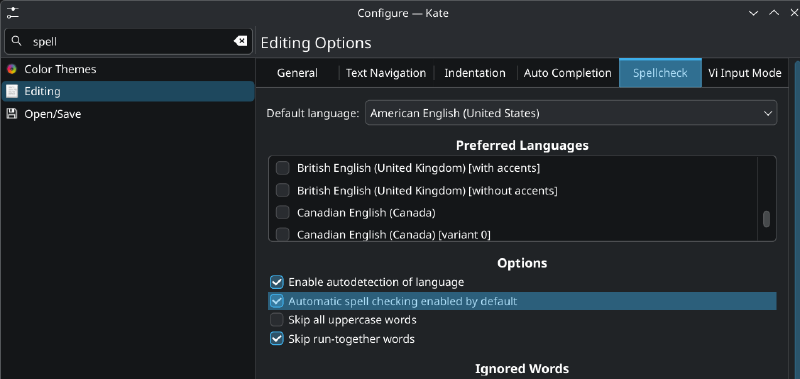
>sudo pacman -S aspell aspell-enNow you just need to configure Kate to use this. To be honest, I should have taken notes. At first I thought that I needed to enable a plugin. That is not the case. The values are under Editing once again, under the tab labeled Spellcheck.
You need to open this. From here make sure to select Automatic spell checking enabled by default. You can choose a preferred language if you want. It will only show you languages that there is currently support for. If you want to test if I am right, throw more language packs at it and see if they show up upon restart.
Enabling Markdown #
Thought I was done, and then looked at my own outline.
Markdown. If you are going to be working on code or a number of systems, you will need to learn Markdown. Yes, Hugo has its own version, but they are all close enough together that it all works. But, the key to all of this, at least in my most humble opinion, is to have a markdown preview.
This one is just a two step process. Install markdownpart and then enable the plugin. Lastly, click on the preview button.
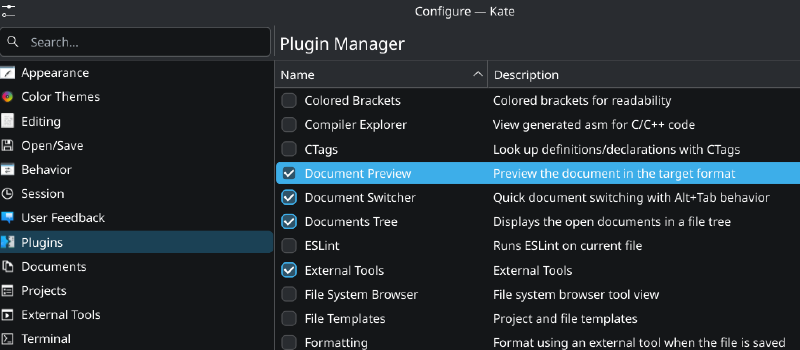
> sudo pacman -S markdownpartNext, enable Document Preview in the plugin section. I believe there are other packages you can add that will provide previews for other file formats, but that is not my focus right now.
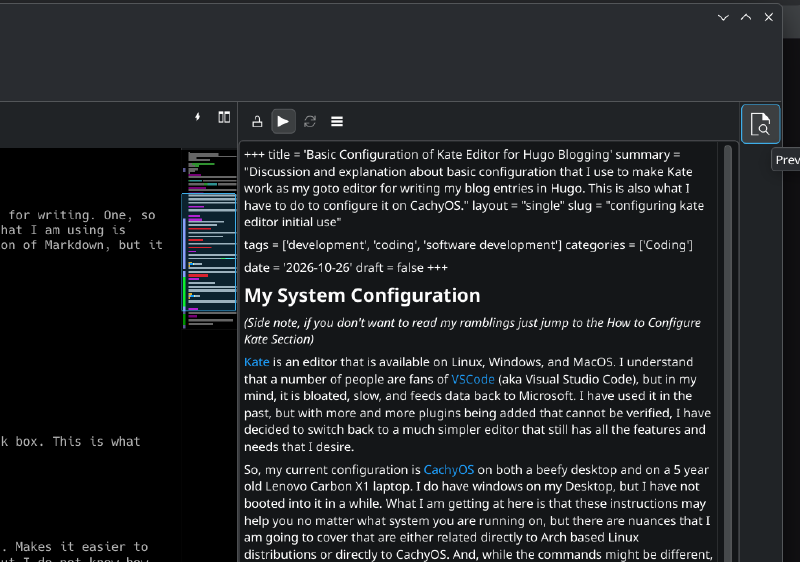
And then click the button on the top right of Kate to be able to see the preview.
And that is it. #
I am sure that there are more configuration changes, but these are the core ones. I also tend to change the default colors. I like a nice dark black background for my editor. All of this low contrast ones, just do not fit the bill for the way that I like to work.
After thoughts #
After writing this, I want to add a few things that I have learned that I like about Kate.
Kate may not have all the bells and whistles that are present is some other IDEs, but for me, it has just enough features. Then, it does what I like best, and just gets out of the way. Some people may not find that to be very important, but for me it helps me maintain my flow. Another factor is that it is not sending data back to some huge company that may or may not have good will going on.
After using a number of editors over the years, I really like the simplicity of Kate. Maybe in the future I will shift from it, but for now, it works.